Moving from WordPress to Ghost is one of the most common requests we get from bloggers and publishers. They want speed, a built-in newsletter, paid memberships and fewer plugins to update. The move itself is mostly straightforward. The traffic people lose afterwards almost always comes from details they skipped.
This guide is the plan we follow, in order, with the checks that protect your search rankings.
Step 0: Decide what is actually moving
Before touching anything, make a list:
- Posts and pages. Usually everything.
- Images. All of them, ideally.
- Tags and categories. Ghost has tags (and internal tags), not categories. Categories usually become tags.
- Authors. Become Ghost staff users.
- Subscribers. From your newsletter plugin or email service.
- Paid members. If you sell memberships on WordPress, plan this part carefully (see below).
- Comments. Do not migrate. Decide whether you need an archive.
- Plugins. List what each one does, and decide whether Ghost or the new theme covers it, an integration replaces it, or you can live without it.
The plugin list is where you discover whether Ghost is right. If a plugin runs your shop, bookings or forum, read Ghost vs WordPress first.
Step 1: Record your current URLs and traffic
Export from your analytics and search console:
- your top pages by traffic, and
- the full list of indexed URLs (your WordPress sitemap is a good source).
You will use this list to test redirects after launch. It is the most important file in the migration.
Step 2: Export from WordPress
Ghost publishes an official WordPress plugin that exports your content (posts, pages, tags, authors and images) as a file Ghost can import. Install it, run the export, and download the file. On very large sites with many images, the plugin export can be slow or time out; Ghost also offers command-line migration tools that handle big sites better.
Clean up first: delete spam, drafts you will never publish and test posts. Moving less is moving faster.
Step 3: Set up Ghost
Choose your hosting: Ghost(Pro) or self-hosted. Set up the site on a temporary address first, not your live domain, so you can test without affecting visitors.
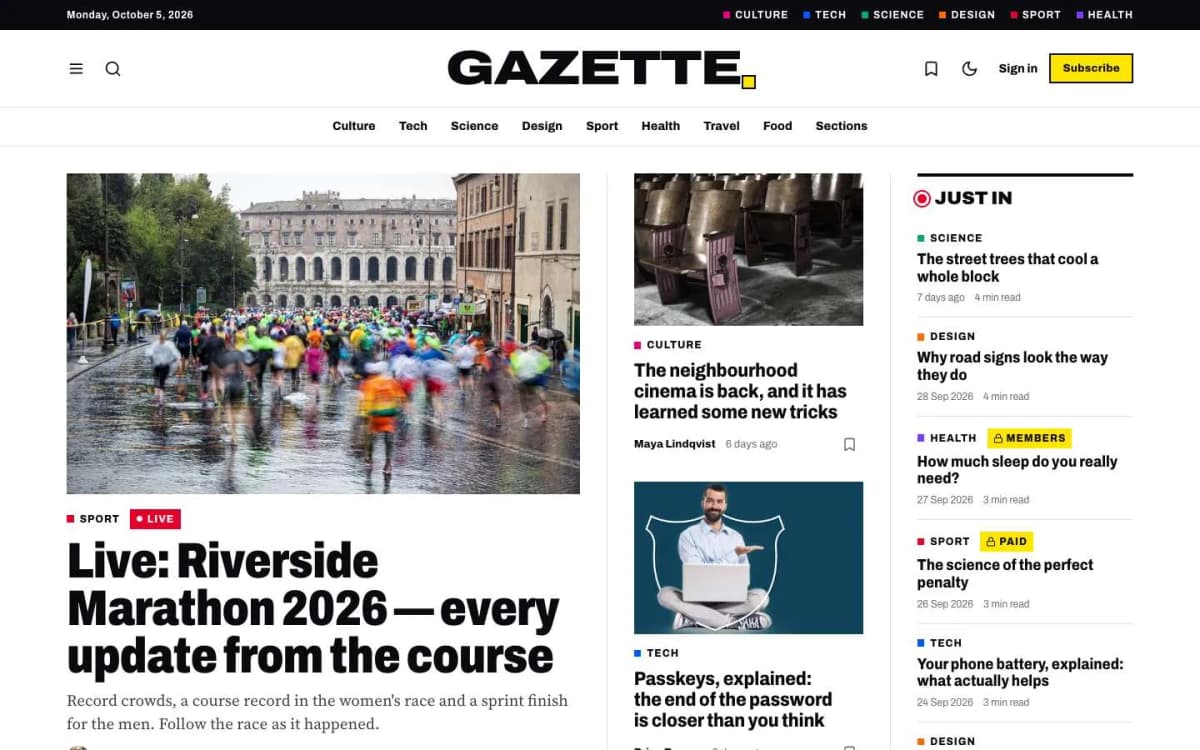
Pick and install your theme now, because many fixes depend on it. If your WordPress theme had features you rely on (recipe cards, review scores, a live blog), choose a Ghost theme that covers them; all our Ghost themes have a live demo you can compare against.
Step 4: Import content
In Ghost Admin, use the import tools to load your export. Then check, post by post for your top pages and by sampling for the rest:
- Formatting. Headings, lists, quotes, tables.
- Images. All present, not pointing at your old WordPress domain.
- Embeds. YouTube, social posts and maps.
- Shortcodes. Search for square brackets.
[gallery],[caption]and plugin shortcodes usually arrive as raw text. - Page-builder layouts. These flatten into plain content and often need rebuilding with Ghost's cards.
- Feature images and excerpts. Check they mapped correctly.
- Authors and tags. Merge duplicates and give important tags descriptions and images.
Step 5: Keep your URLs or plan redirects
This is the step that protects your traffic.
WordPress sites often use addresses like /2024/05/my-post/ or /category/my-post/. Ghost uses /my-post/ by default. You have two options:
- Keep the same structure by configuring Ghost's routes so posts live at the same addresses as before.
- Use the default Ghost structure and redirect every old address to its new one with a permanent (301) redirect. Ghost lets you upload a redirects file with patterns, so one rule can cover a whole date-based structure.
Also redirect:
- old category and tag pages to the matching Ghost tag pages;
- old author pages;
- the old RSS feed address, if readers subscribe to it;
- any page you deleted, to the closest relevant page.
Step 6: Move subscribers and members
- Free subscribers. Export a CSV from your newsletter plugin or email service and import it into Ghost as members. Label them so you know where they came from.
- Paid members. If your WordPress memberships use Stripe, Ghost can connect to the same Stripe account and import paying members with their subscriptions in many cases. Test with a few accounts before moving everyone, and tell members what is changing.
- Consent. Only import people who agreed to receive email from you.
Our guide to Ghost memberships with Stripe explains tiers and access.
Step 7: SEO checks before you switch
- Titles and meta descriptions came across for important posts (Ghost has per-post SEO fields).
- Image alt text is present.
- Internal links point to the new addresses, not the old domain.
- Your sitemap (Ghost generates it automatically) lists the pages you expect.
- Analytics is installed.
Step 8: Switch the domain and test redirects
Point your domain at Ghost. Then take the URL list from Step 1 and test every one: each should load or redirect in a single hop to the right page. Fix anything that returns a 404.
Submit the new sitemap in Google Search Console and watch the coverage and traffic reports for the next few weeks. Some movement is normal; a sharp drop on specific pages usually means a missing redirect.
Step 9: Tell your readers
Send a short newsletter: the site has moved, here is what is new (faster pages, a better newsletter, perhaps a membership), and here is where to update bookmarks if needed.
How long does it take?
A small blog with a few hundred posts can move in a day or two, plus checking. Large sites with years of shortcodes, page-builder pages and many authors take longer, mostly in the clean-up of Step 4 and the redirect testing of Step 8.
What to do with plugins and shortcodes
WordPress sites often depend on plugins that have no direct equivalent in Ghost. Go through the list before you migrate:
- SEO plugins: Ghost has search titles, descriptions, social cards and a sitemap built in. Copy any custom titles and descriptions you care about.
- Contact forms: use a form service and embed it, or link to an email address.
- Galleries and sliders: Ghost's gallery card replaces most of them. Sliders rarely help readers and are worth dropping.
- Shortcodes: posts that use shortcodes will show the raw code after import. Search your content for square-bracket codes and fix the posts that matter.
- Comments: Ghost has its own member comments. Old WordPress comments are usually not imported, so decide whether to keep an archive.
- E-commerce: WooCommerce does not move to Ghost. Use a separate shop service and link to it.
- Membership plugins: export members and their status, then import them into Ghost and connect Stripe.
After the move: the first month
- Check Google Search Console every few days for crawl errors and fix broken redirects.
- Compare traffic for your top pages against the numbers you recorded in step one.
- Keep the old WordPress site available somewhere private for a few weeks, in case you need to recover something.
- Cancel old hosting and plugin subscriptions only after you are sure nothing is missing.
Bottom line
Export, import, check formatting and images, keep URLs or redirect every one, move subscribers with consent, test every important URL after the switch, and tell your readers. Do those well and your search traffic follows you to Ghost.
Want it done for you? Pick a theme from our Ghost themes and our Ghost theme install and setup service will set it up; for larger migrations with redirects and members, contact us for a quote. Coming from Substack instead? Read moving from Substack to Ghost.
Frequently asked questions
Not if you keep your URLs or redirect every old URL to its new address with a permanent redirect, keep titles and descriptions, and check for broken links after launch. Most lost traffic after a migration comes from missing redirects.
No. Ghost's migration does not bring WordPress comments over, and Ghost's own comments are for members. If old comments matter, keep a static archive or accept starting fresh.
They do not convert. Shortcodes usually appear as raw text and page-builder layouts flatten into plain content. Search your export for square-bracket shortcodes and fix the important posts by hand.
Yes. Export subscribers from your WordPress newsletter plugin or email service as a CSV and import them as members in Ghost. Make sure you only import people who agreed to receive email from you.